
ChirpStack Water Meter Setup: A LoRaWAN Installer's Step-by-Step Guide
A practical, end-to-end guide for IoT installers connecting LoRaWAN water meters to ChirpStack and forwarding the data to a white-label client portal. Covers gateway registration, device provisioning, payload decoding, and webhook integration — no custom backend required.
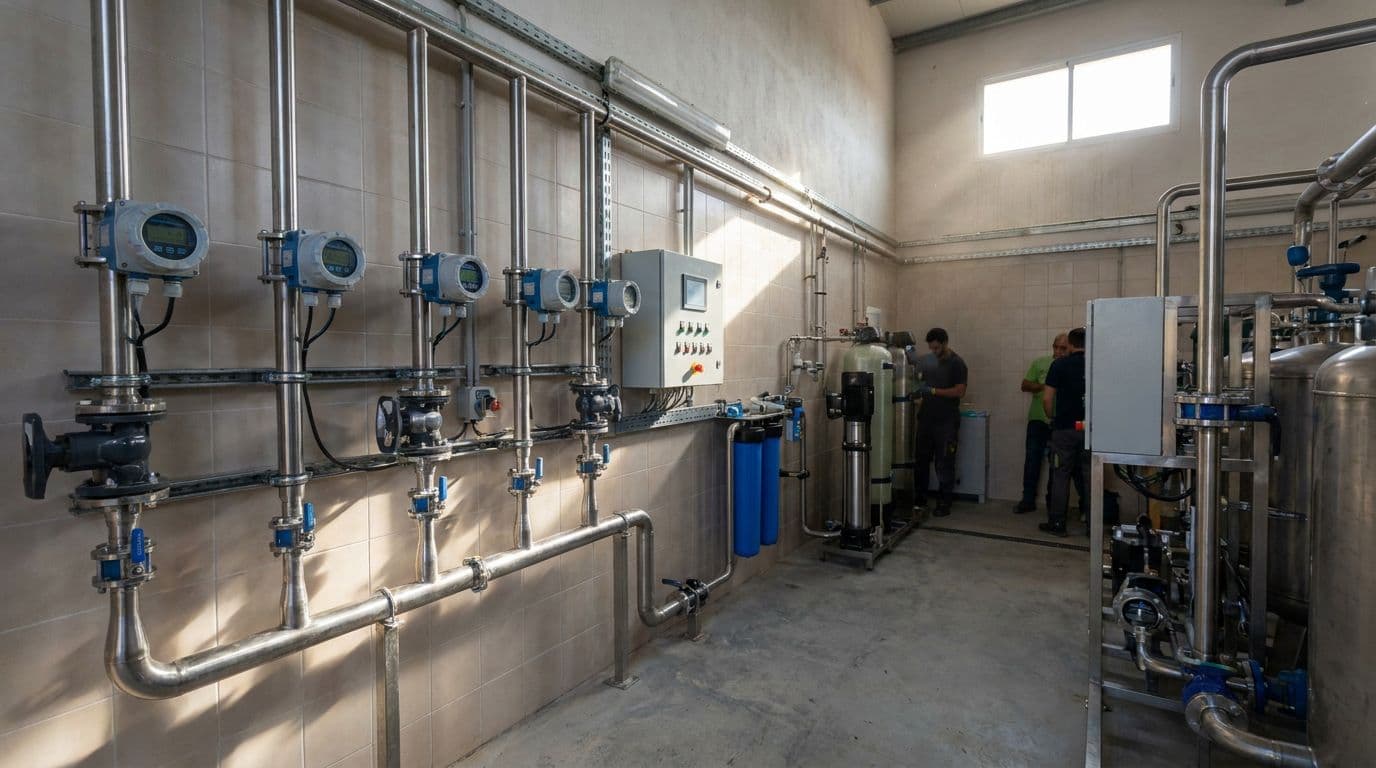
If you install LoRaWAN hardware, ChirpStack is probably already the network server you reach for: it is open source, self-hostable, and vendor-neutral. The part that slows most installers down is not the radio layer — it is everything that comes after a device joins. How do you provision a water meter cleanly, decode its payload, and get readings into a portal a non-technical Community manager can actually use, without writing and maintaining a backend?
This guide walks through the full path: register a gateway, provision a water meter, configure the decoder, and forward the data through a webhook to a white-label platform that turns raw uplinks into a branded client portal. Datakubo sits at that last layer — it is the white-label infrastructure you build your monitoring business on, not a finished vertical product — so the focus here is the practical wiring an installer does once per deployment.
What You Need Before You Start
A working ChirpStack water meter deployment has four moving parts. Get these lined up before installation day and a site visit takes minutes instead of repeat trips.
- A ChirpStack instance (v4). Self-hosted on your own server or a managed instance. This guide assumes ChirpStack v4, whose application/device/device-profile model differs from v3.
- A LoRaWAN gateway with a packet forwarder pointed at your ChirpStack instance (Semtech UDP or the ChirpStack Gateway Bridge over MQTT).
- A LoRaWAN water meter with a documented payload — pulse-output, ultrasonic, or a natively connected smart meter. You need the device's
DevEUI,AppEUI/JoinEUI, andAppKeyfrom the manufacturer. - A destination for the data. This is where a white-label portal replaces months of custom dashboard work. Datakubo ingests ChirpStack webhooks natively, so you point ChirpStack at one URL and devices appear automatically.
Step 1: Register Your Gateway in ChirpStack
ChirpStack needs to know about the gateway before it will accept uplinks from it.
- In the ChirpStack web interface, open Gateways → Add gateway.
- Enter a descriptive Name and the Gateway ID (the EUI printed on the device or reported by its packet forwarder).
- Select the correct Region for your deployment (for example
EU868in Spain and most of Europe). - Save, then confirm the gateway shows a recent Last seen timestamp. If it stays empty, the packet forwarder is not reaching ChirpStack — check the gateway's server address, port, and firewall before going further.
A single indoor gateway in a communal technical room typically covers an entire multi-building site, so this step is usually done once per location.
Step 2: Create a Device Profile for the Water Meter
A device profile describes how a class of devices behaves on the network — its LoRaWAN version, regional parameters, and (critically) how to decode its payload.
- Go to Device profiles → Add device profile.
- Set the Name (e.g. "Ultrasonic Water Meter — Vendor X").
- Choose the LoRaWAN MAC version and Regional parameters revision that match the manufacturer's datasheet. A mismatch here is the most common reason a device joins but never sends usable data.
- Leave OTAA enabled unless the manufacturer specifically requires ABP. OTAA is the safer default for field deployments.
You will return to this profile in Step 4 to add the codec.
Step 3: Provision the Water Meter
With a profile in place, register the physical meter.
- Create an Application (e.g. "Water Monitoring — Site A") if you do not already have one. Applications are how you group devices, and they map cleanly onto a Community in your portal.
- Inside the application, choose Add device.
- Enter the meter's DevEUI, assign the device profile from Step 2, and give it a clear name (the meter's physical location is a good convention — "Block B — irrigation").
- Under OTAA keys, enter the AppKey supplied by the manufacturer.
- Power on the meter and watch the device's LoRaWAN frames tab. A successful join shows a
JoinRequestfollowed by aJoinAccept, then uplinks at the meter's reporting interval (often every 12 hours for battery-powered units).
Step 4: Decode the Payload
Raw LoRaWAN uplinks arrive as compact byte arrays. ChirpStack runs a JavaScript codec to turn those bytes into named fields your portal can chart. Most manufacturers publish a decoder you can paste in; the snippet below shows the shape of a minimal cumulative-volume decoder.
// ChirpStack v4 codec — minimal example.
// Always start from the manufacturer's published decoder; this only
// illustrates the expected output shape.
function decodeUplink(input) {
  const bytes = input.bytes;

  // Example: 4-byte big-endian cumulative volume in litres.
  const litres =
    (bytes[0] << 24) | (bytes[1] << 16) | (bytes[2] << 8) | bytes[3];

  return {
    data: {
      // Cumulative reading in cubic metres — the field your portal expects.
      cumulativeFlowM3: litres / 1000,
      battery: bytes[4], // optional: battery indicator
    },
  };
}
Paste the decoder into the device profile's Codec section and save. Confirm on the device's Events tab that the next uplink decodes into readable fields. Producing a cumulativeFlowM3 value is the cleanest path, because that is the canonical field the ingestion layer reads first — but the platform also normalises common alternatives (litres, vendor-specific names) automatically, so you rarely need to write a decoder from scratch.
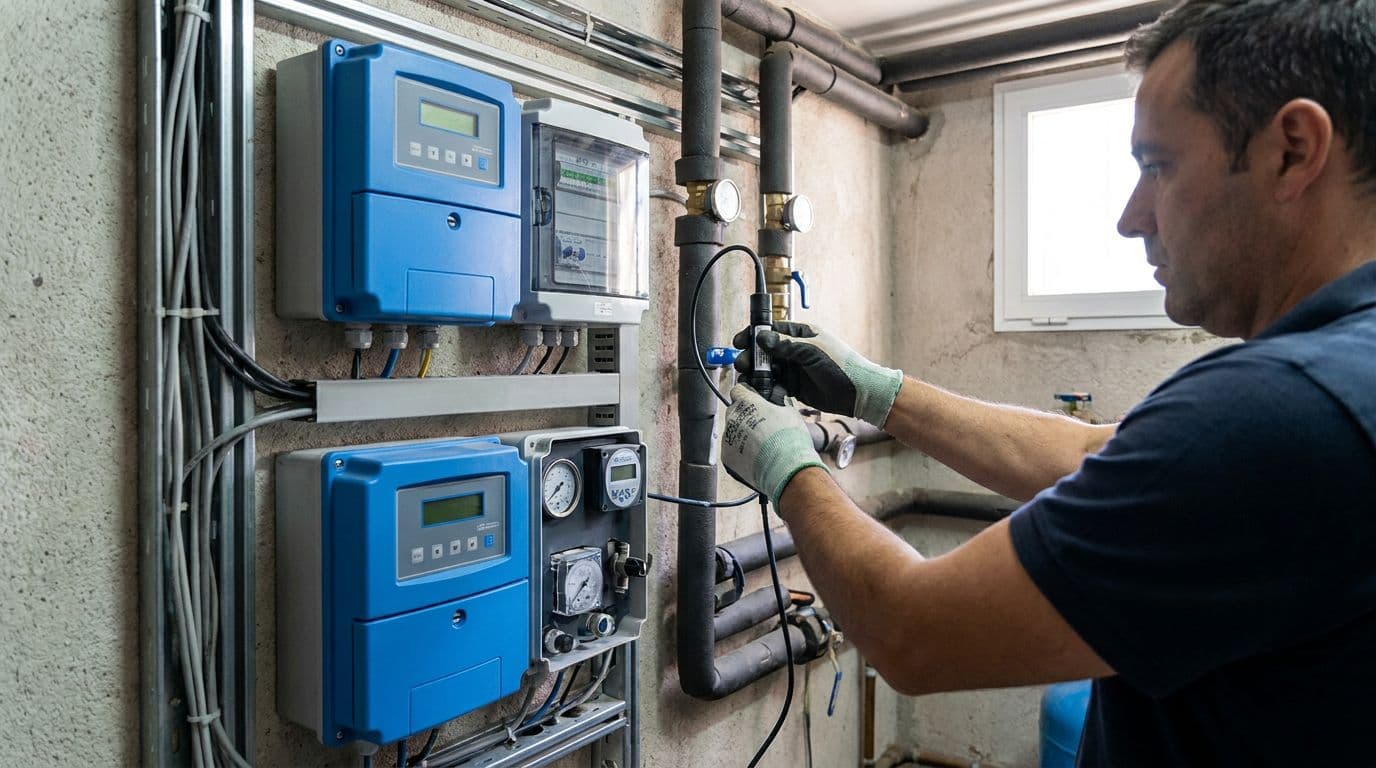
Step 5: Forward Data with a Webhook Integration
This is the step that saves you from building software. A webhook integration tells ChirpStack to push every decoded uplink as an HTTP request to a URL you control.
- Open your Application → Integrations → HTTP.
- Set the Payload encoding to JSON.
- In the Event endpoint URL(s), paste the ingestion URL from your portal. With Datakubo, this is a single webhook endpoint that accepts the ChirpStack event format directly — no translation layer, no decoder rewrite.
- Save. The next uplink is delivered to your portal, and the device registers itself on first transmission. You do not pre-create devices in two places.
Because the platform normalises the payload on arrival (preferring cumulativeFlowM3, converting litres to cubic metres where needed), the same webhook handles meters from different manufacturers without per-vendor configuration on your side.
Step 6: Turn Readings Into a Client-Ready Portal
Once uplinks are flowing, the platform layer does the work that would otherwise take a development team months:
- Consumption charts that a non-technical Community manager reads at a glance — daily and monthly trends per meter, not raw byte counts.
- Configurable anomaly detection. The alerting engine compares each meter's readings against thresholds you define. Water installers typically configure continuous-flow rules to surface a probable leak, overnight-flow rules to catch a running tap in an empty common area, and offline rules for low battery or lost connectivity. The engine itself is vertical-agnostic — you configure the rules for your use case.
- Resident self-service. The Community manager invites a Resident by email; from then on, that Resident sees only their own water consumption and any alarm alerts. Providing end-user access like this is hard to bolt onto a generic IoT stack, and it is built in here.
- Your brand, your domain. The portal carries your logo and runs on your domain, so every Community manager who logs in sees your product — not an anonymous tool.
For the full picture of how the platform fits an installer's business — hardware support, multi-tenant management, and pricing — see the water meter monitoring platform overview.
Common Setup Issues and How to Fix Them
The device joins but no data appears in the portal. The join is working but the webhook or decoder is not. Check the Events tab for decoded fields first; if those are empty, the codec is the problem. If decoding is fine, re-check the HTTP integration URL.
Uplinks decode to the wrong values. Almost always a byte-order or unit mismatch in the decoder. Confirm endianness and whether the meter reports litres or cubic metres, and let the platform's normalisation handle the unit conversion.
The device never joins. Recheck the DevEUI/AppKey pair against the manufacturer's sheet, confirm the device profile's LoRaWAN version matches the hardware, and verify the gateway's Last seen is current.
Intermittent uplinks. Usually coverage. A site survey before installation — confirming the gateway hears the meter from its final location — avoids return visits.
Why This Architecture Works for Installers
The value of pairing ChirpStack with a white-label platform is a clean separation of concerns. ChirpStack owns the network: gateways, device sessions, and decoding. The platform owns everything the customer touches: charts, alerts, Resident access, branding, and multi-tenant management across your whole portfolio. You own the relationship and the recurring revenue.
You are not maintaining a database, an alerting service, or a dashboard. You provision a meter, point one webhook at one URL, and the readings show up in a branded portal your Community managers already understand. That is the difference between a project you have to babysit and a service that scales.
When you are ready to connect your first meters, start from the water meter monitoring platform overview and provision a Community in a few clicks.